How to Build a Custom Excel Budget Template From Scratch
Learn how to design, format, and automate a professional monthly budget spreadsheet from scratch to take total control of your personal finances.
How to Build a Custom Excel Budget Template From Scratch
Finding a clean, reliable, and truly functional Excel budget spreadsheet can feel like searching for a needle in a haystack. Many pre-made templates found online are bloated with confusing macros, locked formulas, or rigid structures that do not fit your personal financial reality. If you are tired of downloading messy spreadsheets that break the moment you try to customize them, the absolute best solution is to build your own.
Building a custom Excel budget template gives you complete control over your cash flow, categories, and visual dashboards. In this comprehensive, actionable guide, you will learn how to design, format, and automate a professional monthly budget spreadsheet entirely from scratch.
Before you dive into building your own, if you need a quick calculation right now without opening a spreadsheet, you can use our free Instant Budget Calculator to get immediate insights into your monthly savings rate. For those looking for an advanced, fully pre-built suite of tools, check out our comprehensive Ultimate Budget Spreadsheet Kit.
Step 1: Define Your Financial Framework and Categories
Before touching a single cell in Excel, you need a clear financial framework. A great budget does not just track spending; it tells your money where to go before the month even begins. The most sustainable budgeting methodology for beginners and pros alike is the 50/30/20 rule:
- 50% Needs: Essential expenses required for survival, such as rent, mortgage, utilities, groceries, insurance, and minimum debt payments.
- 30% Wants: Lifestyle choices, discretionary spending, dining out, entertainment, and recurring digital subscriptions.
- 20% Savings & Debt Acceleration: Emergency fund contributions, retirement account deposits, and extra debt payoff allocations.
Write down your specific income sources and recurring expense categories on a piece of paper or in a simple notes app. Keeping this initial list concise prevents your spreadsheet from becoming overly complicated during the setup phase.
Step 2: Structure Your Excel Workbook Layout
Open a blank workbook in Microsoft Excel or Google Sheets. To keep your data organized and easy to audit, you should separate your workbook into logical tables or distinct vertical sections. A clean layout generally consists of three core tables stacked sequentially:
- Monthly Income Table: Capturing all inflows, including primary salary, freelance work, side hustles, and investment dividends.
- Fixed Expenses Table: Bills that stay relatively constant every month, such as rent, car payments, and insurance.
- Variable Expenses Table: Day-to-day spending categories that fluctuate based on your habits, such as groceries, dining out, and gas.
Set up your column headers clearly across row 4. Use standard headers such as Category, Projected / Budgeted, Actual Spent, and Difference (Variance). Keeping consistent column structures across all your financial tables makes writing summary formulas significantly easier later on.
Step 3: Populate Your Data and Write Core Formulas
Now it is time to bring your spreadsheet to life by adding formulas that automate your math. Never hardcode your totals; let Excel do the heavy lifting so your template remains dynamic.
Numbered Step-by-Step Instructions:
- Enter Your Categories: In column A, list your income sources down the rows, followed by your fixed and variable expenses, leaving blank rows between sections for clarity.
- Input Budgeted Amounts: In column B (
Projected), enter the target dollar amounts you plan to earn or spend for each specific category. - Input Actual Amounts: In column C (
Actual), leave these cells blank or enter your real-time tracking data as the month progresses and expenses occur. - Calculate Variances: In column D (
Difference), write your first formula. For expenses, type=B5-C5to see if you are under budget (positive number) or over budget (negative number). - Sum Your Totals: At the bottom of each table, use the standard SUM function (e.g.,
=SUM(B5:B12)) to automatically calculate total projected income, total fixed costs, and total variable spending.
Step 4: Worked Example With Real Numbers
To see how these formulas function together in practice, let us look at a real-world example for a single category row within your variable expenses table.
Imagine your grocery budget is set up in row 12:
- Column A (Category): Groceries
- Column B (Projected): $400.00
- Column C (Actual): $350.00
- Column D (Difference):
=B12-C12which evaluates to$50.00
Because the resulting difference is positive $50.00, your conditional formatting or visual scan immediately tells you that you successfully stayed under budget for groceries this month. If your actual spend was $450.00, the variance would calculate as -$50.00, highlighting an overage that requires attention.
Step 5: Common Pitfalls to Avoid
Even experienced spreadsheet builders can make mistakes that compromise the integrity of their budget. Watch out for these common traps:
- Overcomplicating with Macros: Avoid writing complex VBA scripts unless absolutely necessary. Standard Excel formulas are faster, easier to troubleshoot, and less prone to security warnings.
- Hardcoding Summary Values: Never type final totals manually. Always use
=SUM()formulas so that when you update an individual expense, your entire net cash flow updates instantly. - Neglecting Mobile Usability: Keep your column widths reasonable and avoid burying key summary metrics deep in remote cells so your spreadsheet looks great on tablet and mobile viewing apps.
Step 6: Actionable Checklist
Use this final launch checklist to ensure your custom Excel budget template is fully operational:
- Defined income sources and categorized expenses using the 50/30/20 framework.
- Created structured tables with clear column headers (Category, Projected, Actual, Variance).
- Inserted dynamic
=SUM()formulas for all income and expense totals. - Applied subtraction formulas in the variance column to track spending discipline.
- Tested the spreadsheet with sample transaction data to ensure calculations update correctly.
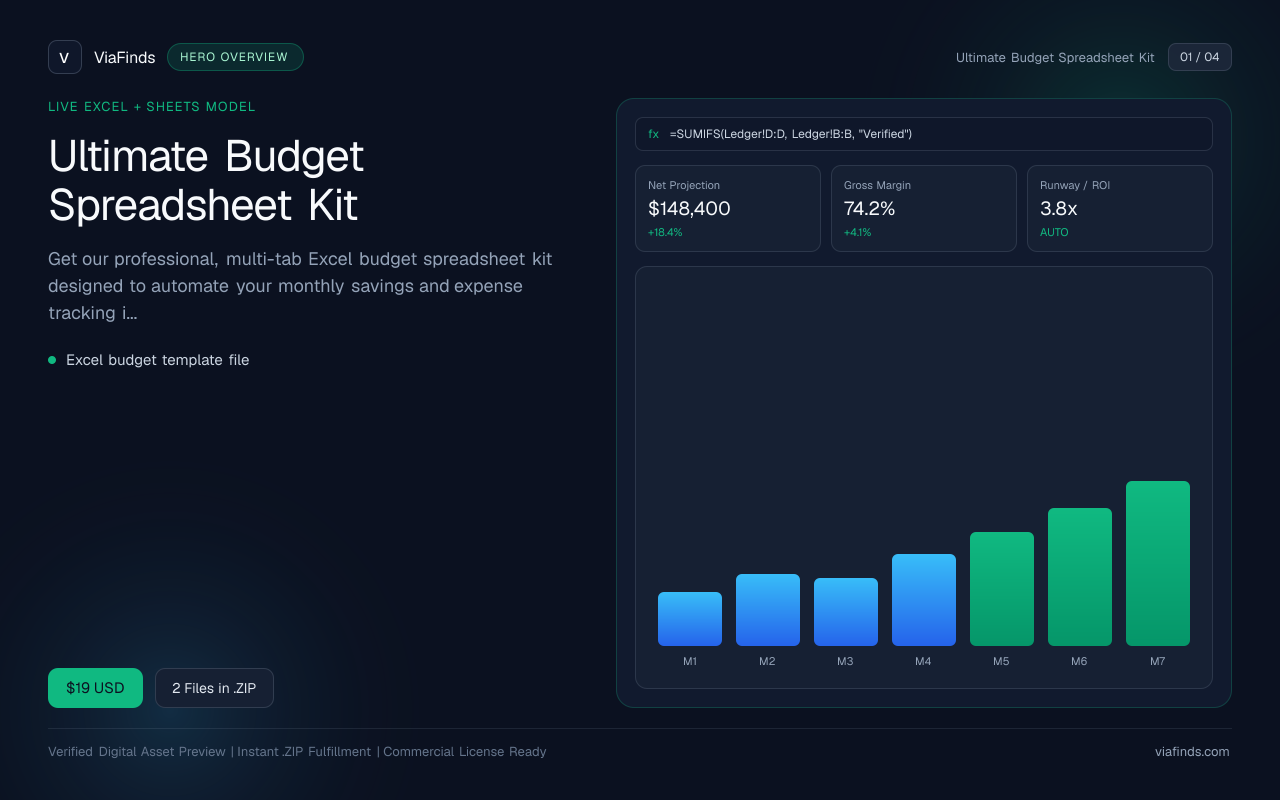
Ultimate Budget Spreadsheet Kit
Get our professional, multi-tab Excel budget spreadsheet kit designed to automate your monthly savings and expense tracking instantly.
- Excel budget template file